![givsumLogo_orange_long (1)-2.png]](https://faq.givsum.com/hs-fs/hubfs/givsumLogo_orange_long%20(1)-2.png?height=40&name=givsumLogo_orange_long%20(1)-2.png)
Below are the steps to customizing your OC Nonprofit Central profile! Please review the required profile fields are listed here on the OC Nonprofit Central site.
Step 1: Navigate to Your OC Nonprofit Central Dashboard
When you login to Givsum as an admin of an organization that has a profile on OC Nonprofit Central, you will automatically be landed on your organization's profile page. From there you can begin editing/updating your profile.
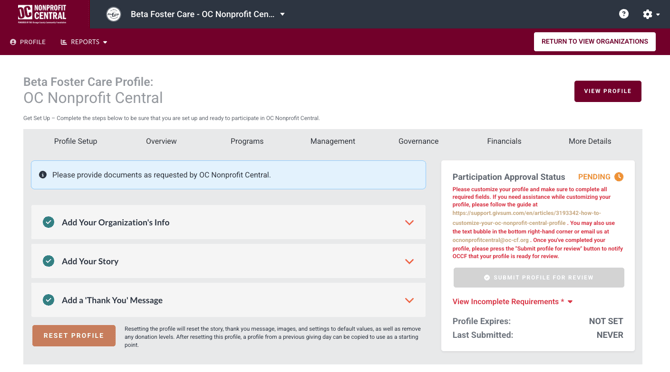
Step 2: Add Your Organization's Information
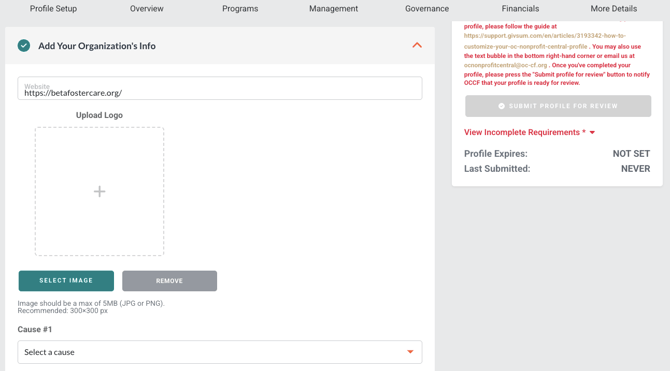
Click on the dropdown "Add your Organization's Information" to add your organization's logo, website URL, and up to three causes that best represents your organization.
As one of the first things a donor sees on your profile, your logo should be current and represent your brand. Please review your logo and re-upload if necessary so that you can size the photo appropriately.
The causes will be one way a potential donor can search for your organization so make sure the causes you select best represent your organization.
Once you've completed this information, click the "Save" button.
Step 3: Add Your Story
Next, click on the tab "Add your Story". Here, you can update your photo, tell your organization's story and add a video link. This is the first page that someone will see when visiting your profile so please add at least a paragraph to describe your organization.
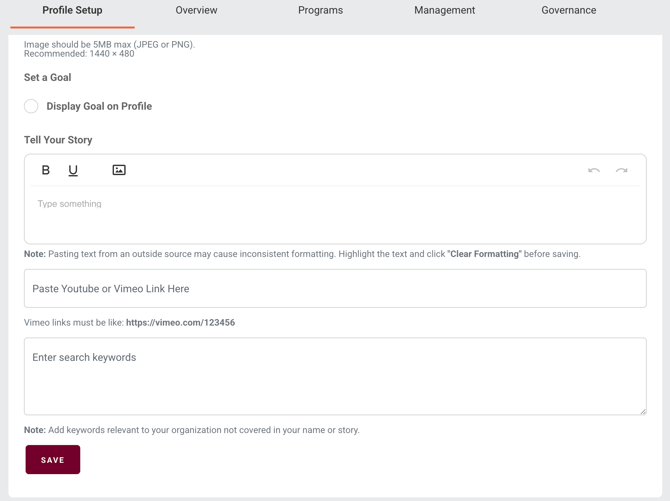
You can also add a YouTube or Vimeo video. Just copy the link into the Video URL field. Please only enter the video link (URL) and not the embedded code.
Once you've completed this information, click the "Save" button.
Step 4: Complete Payment Setup
Next, if the notice box "Donation Status: Incomplete" is open, click "Complete Payment Setup" to get Stripe verified, and to add your organization's general information, organization representative, and bank account information.
This is necessary to become verified to accept donations on the OC Nonprofit Central platform and to receive your donations through ACH direct deposit transfer. Once this information is complete click "Save". Your organization should be verified to accept donations within minutes.

Step 5: Add Your Thank You Message
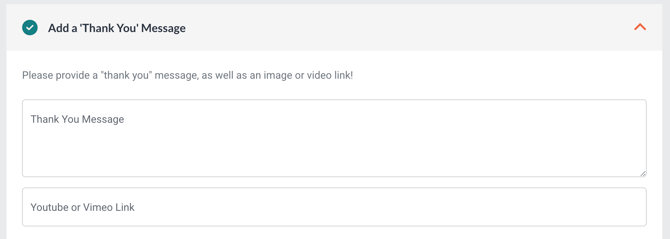
Click on the tab "Add a Thank You Message" on your Dashboard to add a custom thank you message your donors will receive immediately after making their contribution to your organization.
Here you can add an image or video (adding a video will replace any image you add). If you add a video, please enter the YouTube or Vimeo link and not embedded code. To add an image, click the Select Image button.
Once you've completed your thank you message, click the "Save" button.
Step 6: Update Organization Info in Tabs
Information about your organization should be entered under each of the following tabs: Overview, Programs, Management, Governance, Financials, & More Details. You are able to see what fields need updates as the text will be highlighted in red, and required fields will have an asterisk (*) next to them.
Take a look at what these tabs look like and how to navigate to each one before we dive further into each tab:
Now let's go through each of the tabs!
Overview:
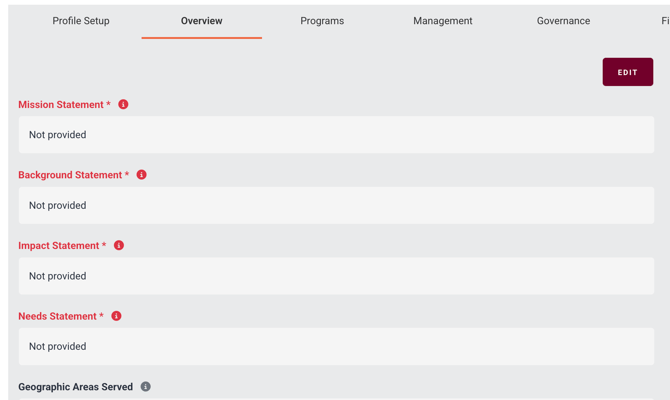
In the Overview tab, you'll be able to add your Mission Statement, Background Statement, Impact Statement, Needs Statement, Statement from the CEO/Executive Director, Statement from the Board Chair/ President, & Geographic Areas Served.
The following short video scrolls through this content. You will notice there is an "Edit" button at the top, which will open up all fields, so that you can edit all content at once. Click "Save" at the bottom of the page to save your changes.
Programs:
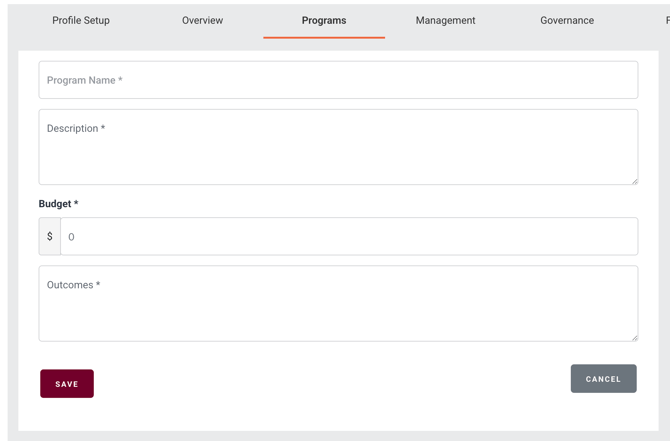
In the Programs tab, you are able to add program information including the Program Name, Description, Budget, and Outcomes.
To add a new Program, click "Edit" and then click "Add Program". This will add another blank field for you to enter other Program information. All fields need to be filled out in order to Save.
You can also delete a program by clicking "Edit" and then "Delete" in the Program you're looking to remove.
Here is what the Programs tab and the different abilities looks like:
Management:
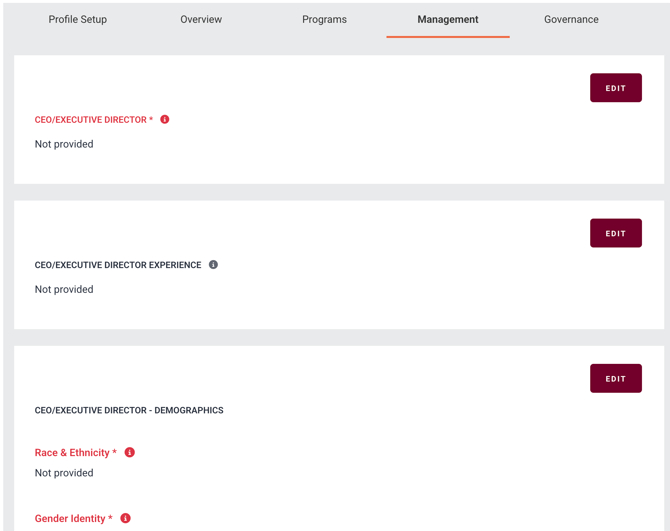
In the Management tab, please add information about your CEO/ Executive Director Experience, Staff Information, Staff Demographics, and Awards.
Here is what the Management tab looks like:
Governance:
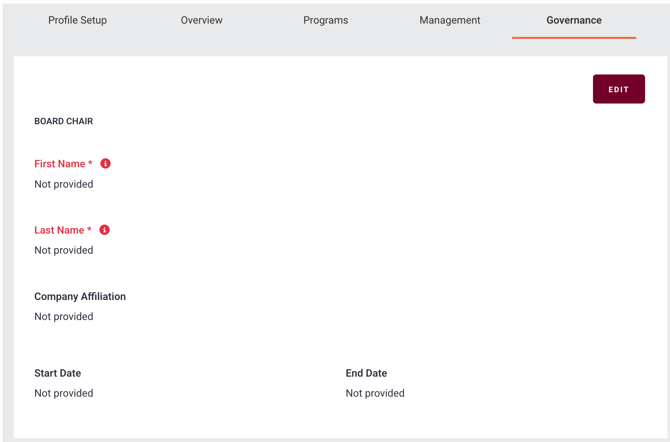
The Governance tab includes information about your Board Chair, Board Members, Board Demographics, and Board Statistics.
To add another row of information about your Board Chair(s), and/or Board Members, click the "Edit" button and then the "Add Row" button. Be sure to click "Save" in each section to update your changes.
Here is what the Governance tab looks like:
Financials:
Your Financials tab includes your 990, budget reports, projections, etc.
More Details:
The More Details tab collects basic information on your organization as well as contact information.
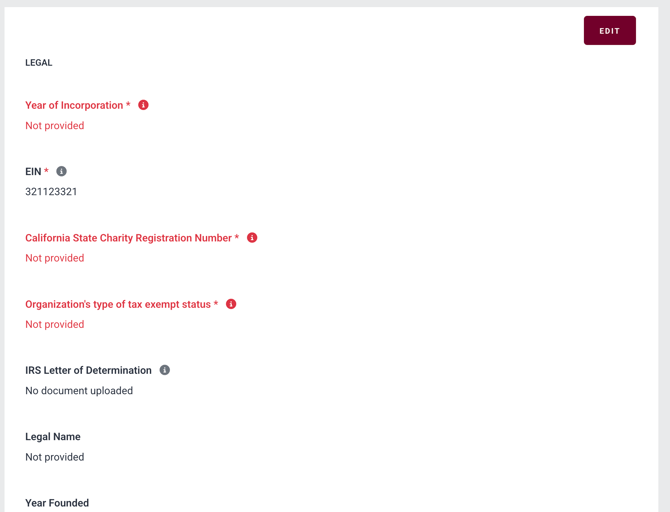
Here is what the More Details tab looks like: